Help Center

Getting started

Use an invitation code to create an account, verify your email, complete card validation, save your recovery codes, then use the dashboard setup list to start building your health story.

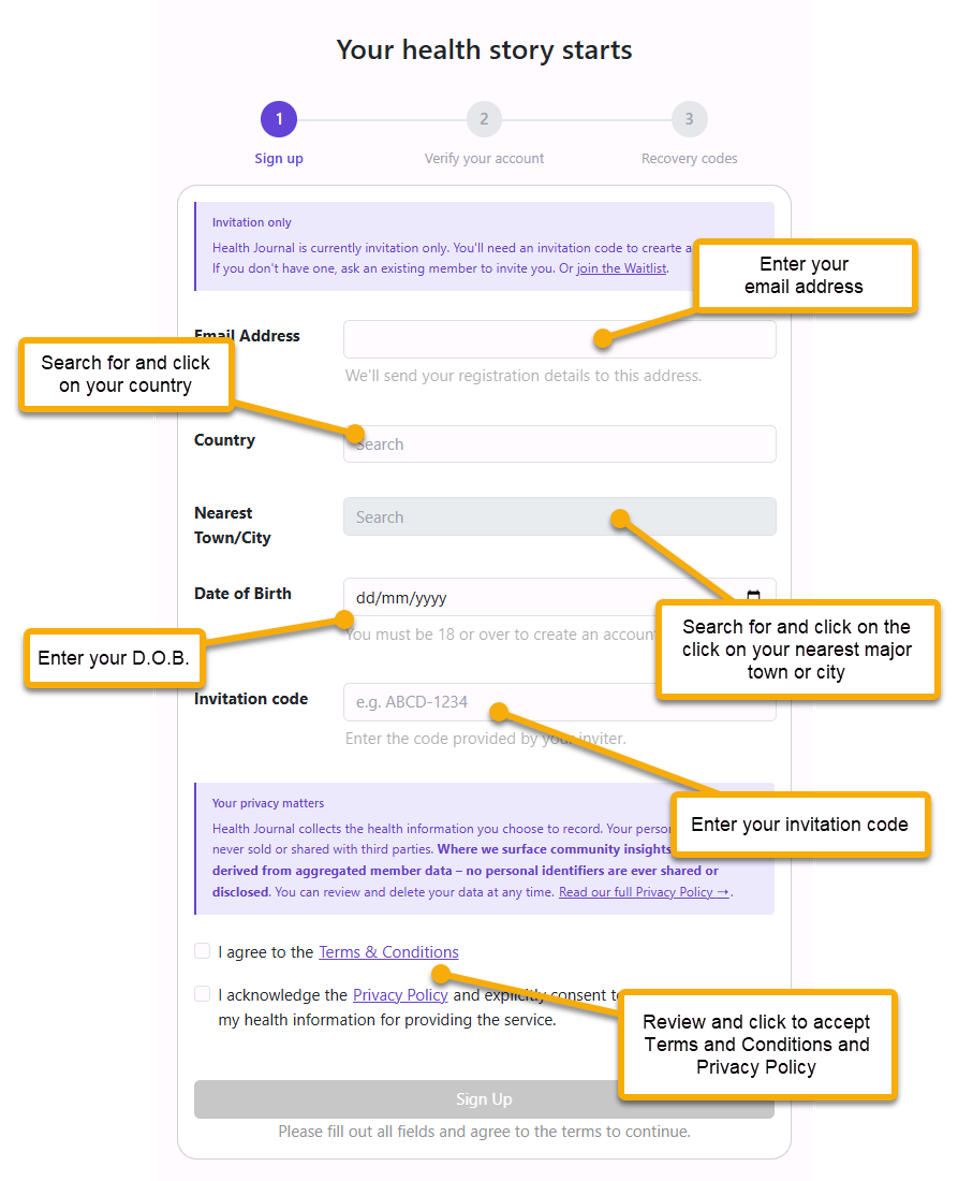
Real Health Journal sign-up screen with callouts
Real app screen: sign-up with email, country, town or city, date of birth, invitation code, and agreement checkboxes.

Sign up with an invitation code

Sign-up screen with callouts
What this screen asks for
Email addressUse an inbox you can access. Health Journal sends account emails there.Required
Country and nearest town/cityChoose the closest accurate location result where possible.Required
Date of birthUsed for age checks and age-at-the-time views.Required
Invitation codeEnter the code you were given. Without a code, use the waitlist link.Required
  1. Enter your details. Work down the form in the order shown.
  2. Choose search results where possible. Country and nearest town/city help with local settings and future community insights while protecting identity.
  3. Enter your invitation code. This is needed before the free trial can start.
  4. Tick the agreement boxes. The Sign Up button stays disabled until the required fields and agreements are complete.

Verify your email address

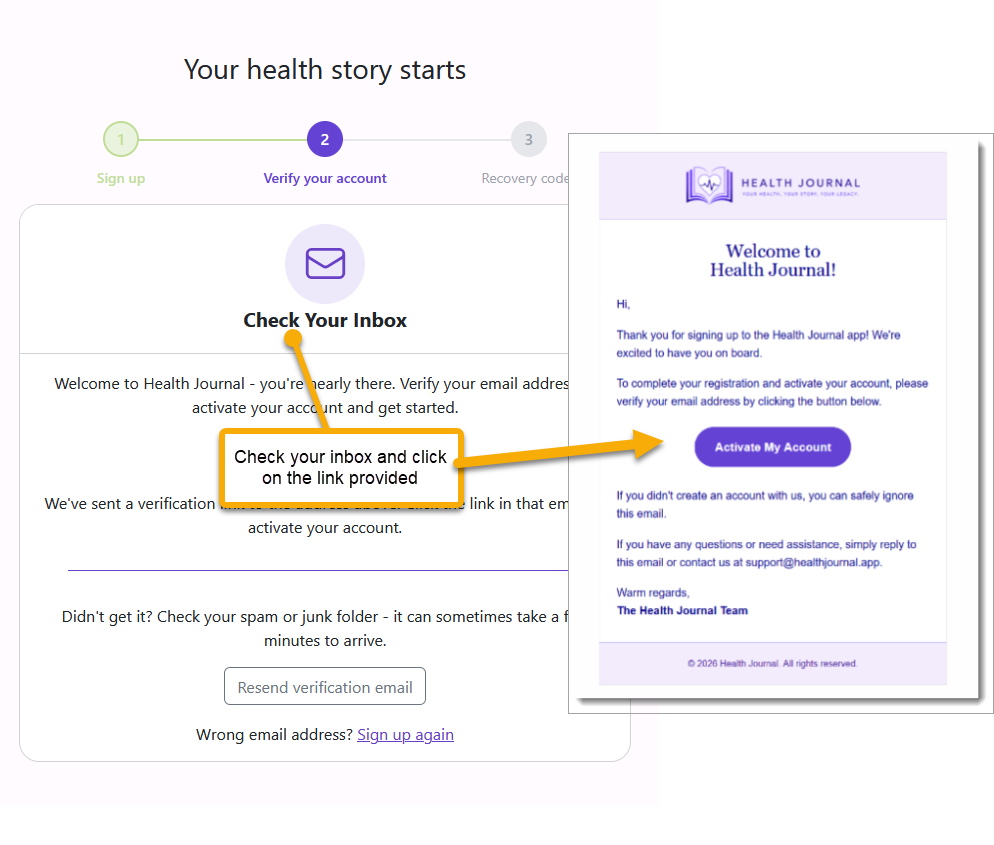
Check inbox screen with verification email callout
  1. Check your inbox. Health Journal sends a verification email to the address you used.
  2. Open the newest email. If you request another email, use the most recent message.
  3. Choose the activation link. The link confirms your email address and moves you to account verification.
  4. Check junk or spam if needed. The email can take a few minutes to arrive.

Validate your card as proof of human

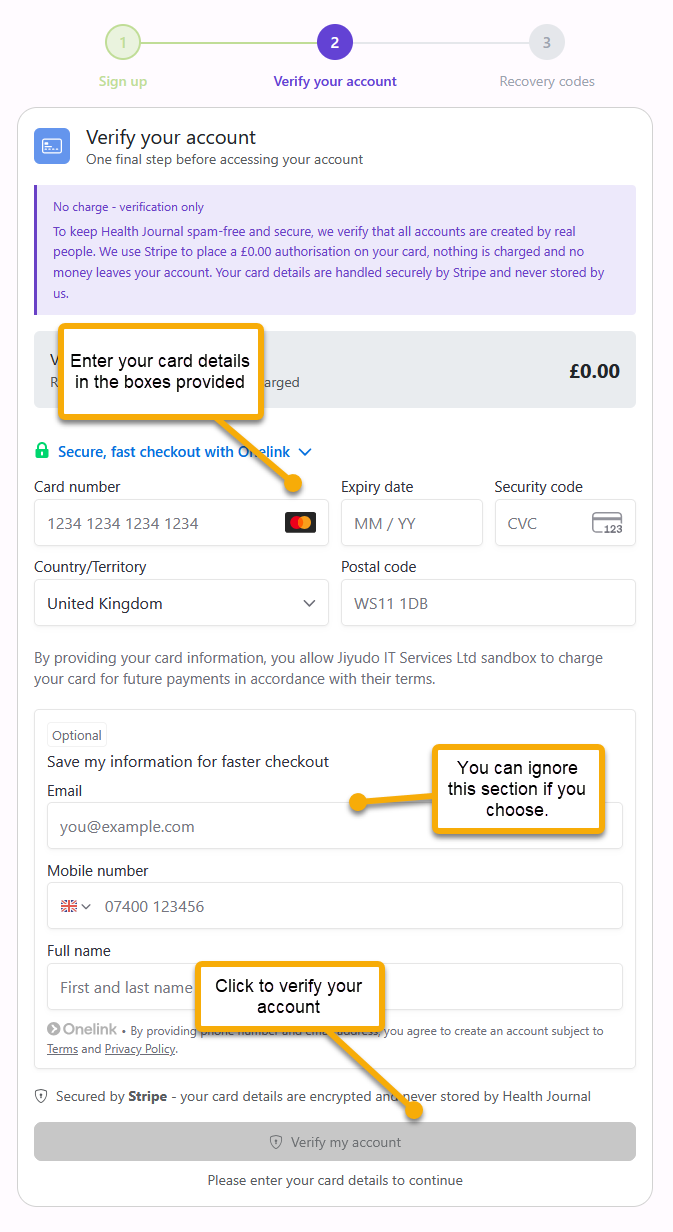
Card validation screen with callouts
Why this step exists
Proof of humanIt helps keep Health Journal spam-free and confirms the account was created by a real person.Required
Authorization amountThe real screen shows a zero-value authorization. Nothing is charged and no money leaves your account.No charge
Card detailsHandled by Stripe. The screen states that card details are encrypted and never stored by Health Journal.Secure
  1. Complete the card fields. Enter the card number, expiry date, security code, country, and postal code.
  2. Ignore optional checkout fields if you want. The saved checkout section is not required for Health Journal verification.
  3. Verify the account. The button becomes available after the required card details are complete.
  4. Continue to recovery codes. After card validation succeeds, the app shows your recovery codes.

Save your recovery codes

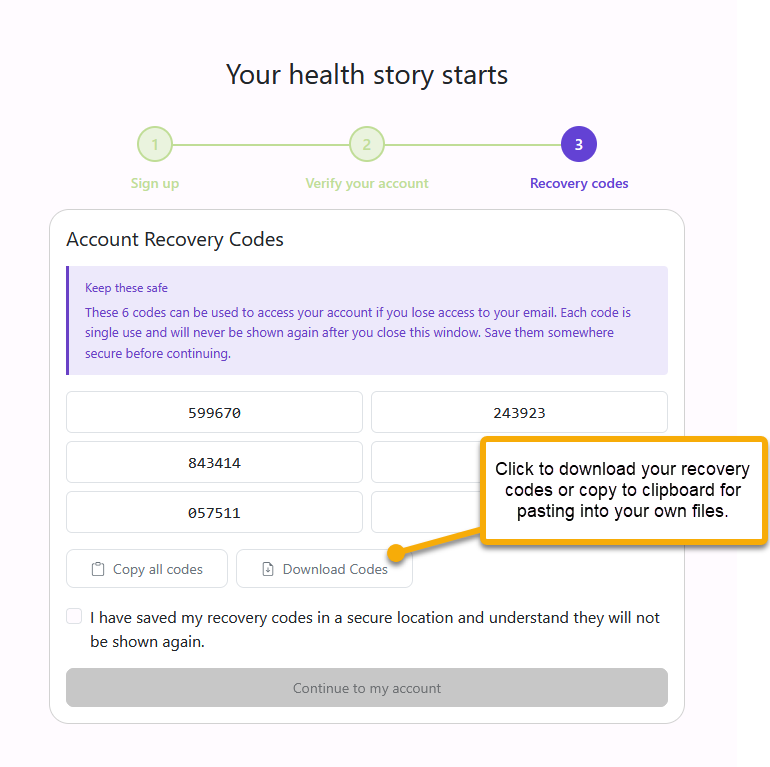
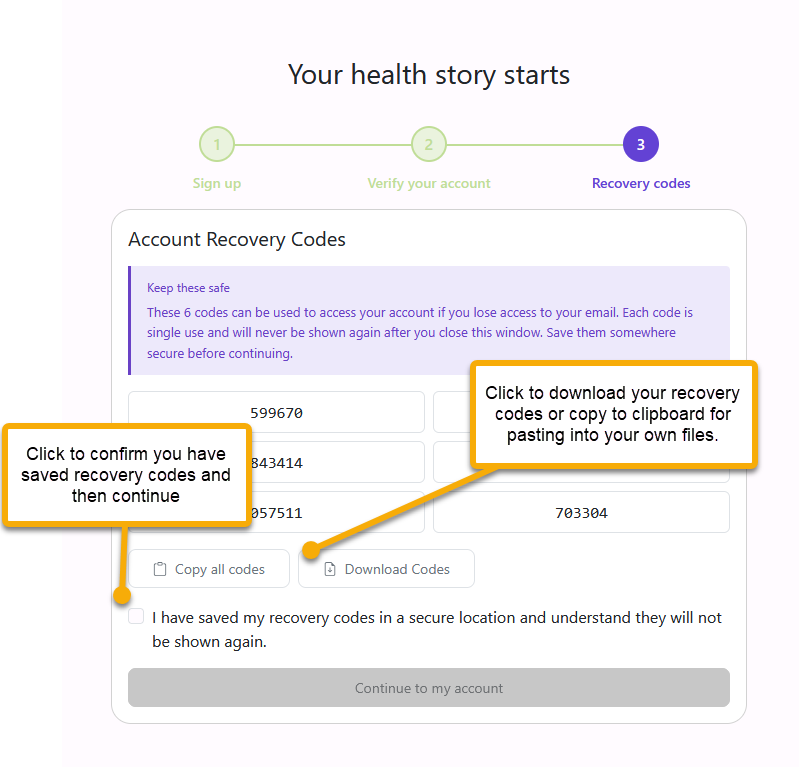
Recovery code copy and download options with calloutRecovery codes saved confirmation with callout

After card validation, Health Journal shows recovery codes. These codes can help restore access if you lose access to your email account.

  1. Copy or download the recovery codes when the screen offers them.
  2. Keep them somewhere private and safe, away from your normal inbox.
  3. Tick the confirmation box only after you have saved the codes.
  4. Continue to your account once the recovery codes are safely stored.

Use your dashboard setup list

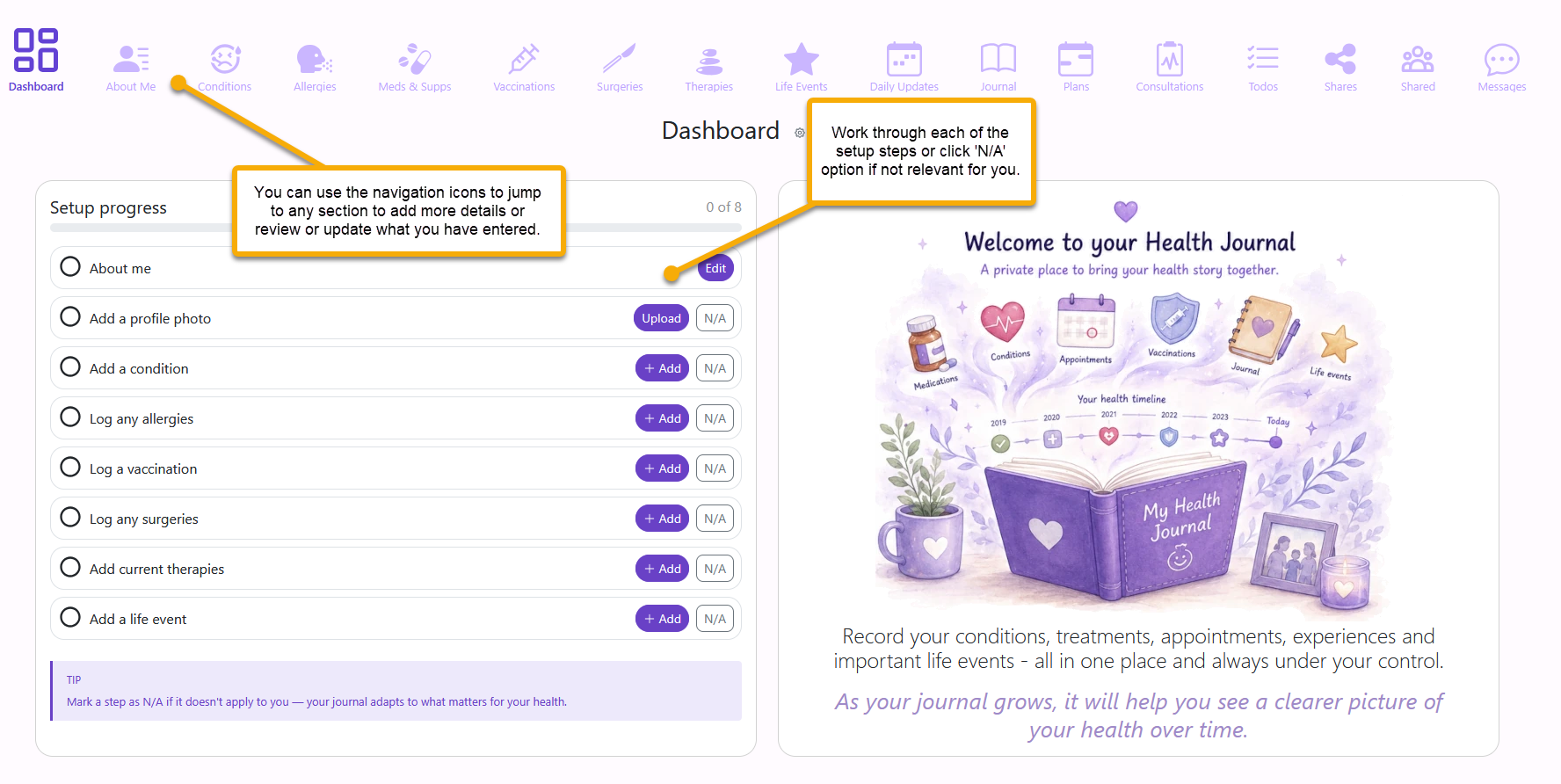
Dashboard setup progress with navigation callouts
  1. Start with current ongoing conditions, then add significant resolved conditions from your past.
  2. Work through the setup progress list, or mark a step as N/A if it is not relevant.
  3. Use the navigation icons when you want to add information in a different order.
  4. Come back as often as you need. Your health story is a living record that can grow over time.

Join the waitlist if you do not have a code

If you do not have an invitation code yet, use the waitlist link shown on the sign-up screen.

  1. Choose join the Waitlist. Use the link shown in the invitation-only message.
  2. Add your name and email address. Use an address you check regularly.
  3. Submit the waitlist request. Health Journal uses this to contact you when a place is available.

Sign in after you have an account

Use the Login link at the top of the app. Health Journal asks for your email address and sends a secure login link.

  1. Use the newest email from Health Journal if you request more than one link.
  2. If the email does not arrive, check junk, spam, promotions, and blocked senders.
  3. If you used the wrong email, contact support before building a record under the wrong account.