Before you add a condition
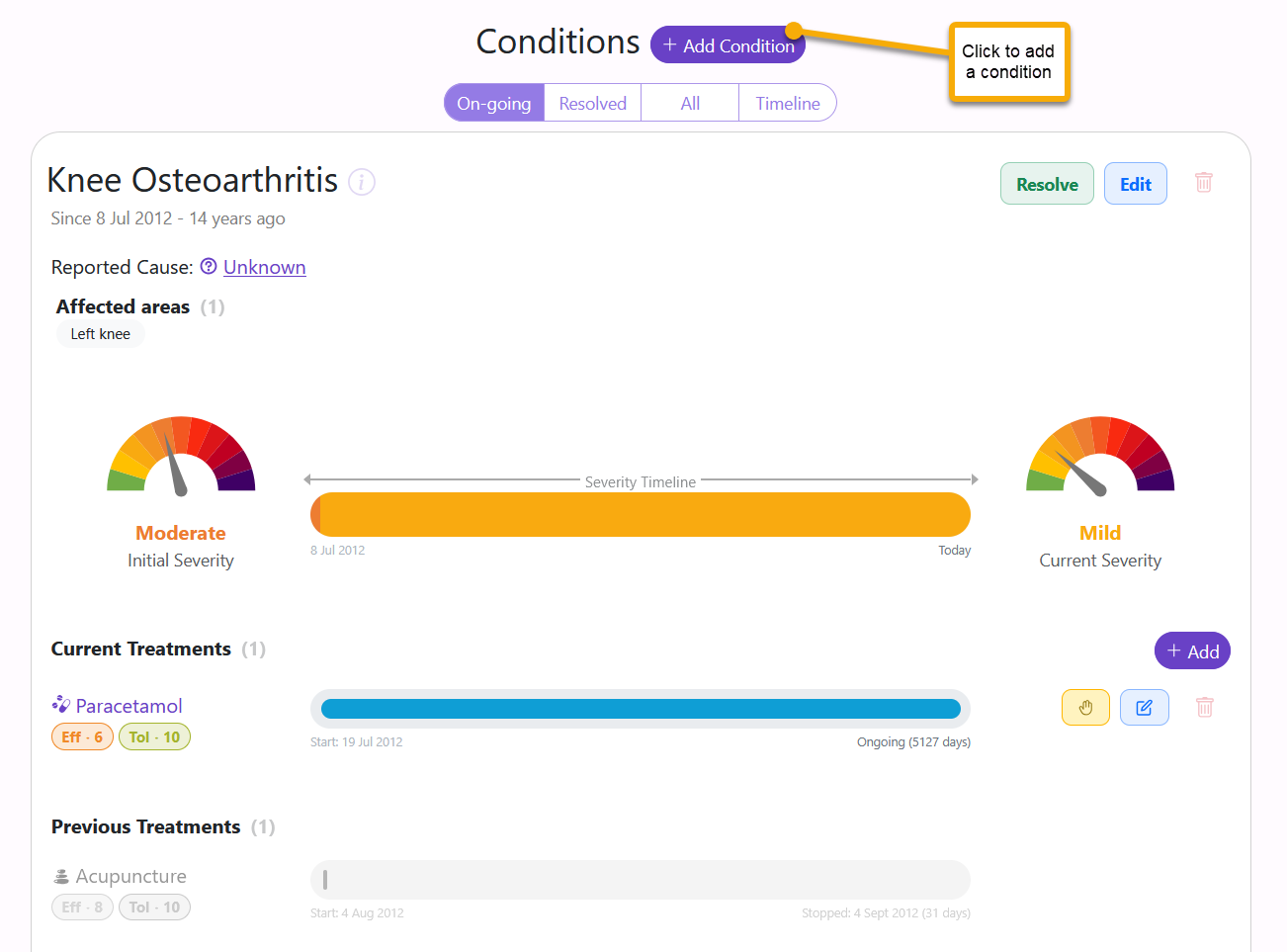
A condition is the health problem itself. Add the condition first, then add the details that explain it: dates, severity, body areas, notes, and any treatments used to manage or resolve it.
- Use Conditions for an illness, disease, injury, or health problem you want to track, such as asthma, migraine, anxiety, or neck pain.
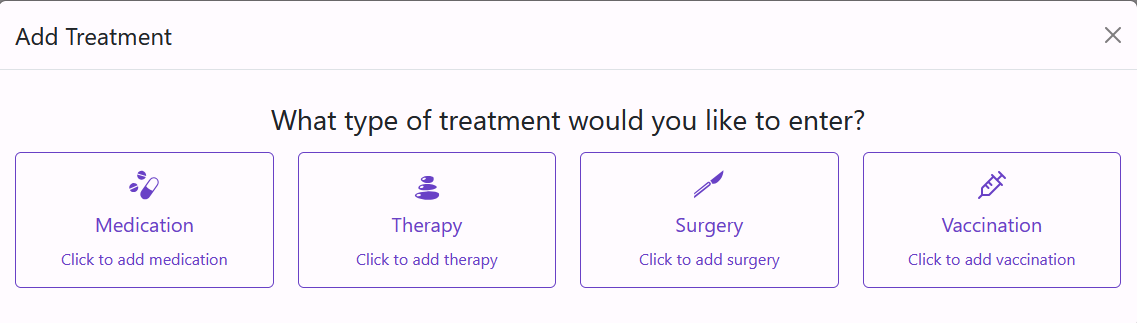
- If a medicine, supplement, therapy, surgery, or vaccination is being used to treat this condition, add it from the condition record so the relationship is kept.
- If a medicine or supplement is general or preventative, add it under Meds & Supps instead.
- You do not need to record every minor cold or cough. Focus first on conditions that affected your life, treatment, or medical history.
- Use the best date you know. An approximate date is better than leaving the story without a timeline.
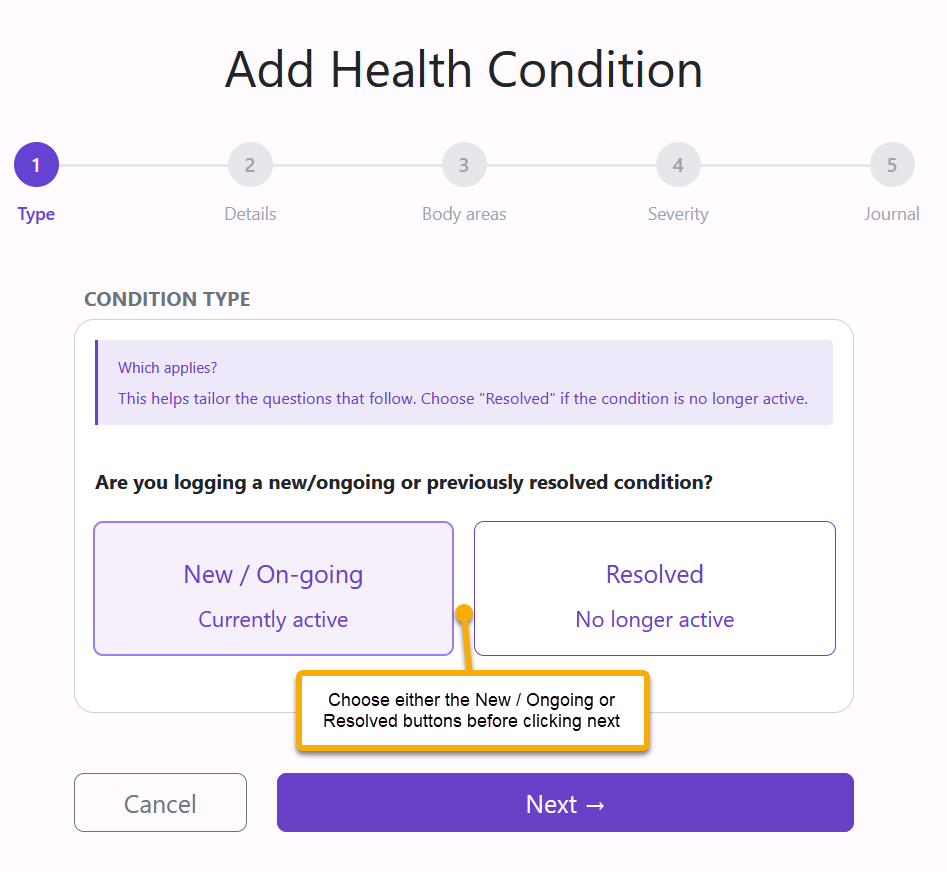
Step 1: choose condition type
- Choose New / Ongoing. Use this when the condition is active now.
- Choose Resolved. Use this when the condition is no longer active but had a meaningful impact and belongs in your history.
- Move forward with Next. The choice changes which dates and severity questions make sense later.
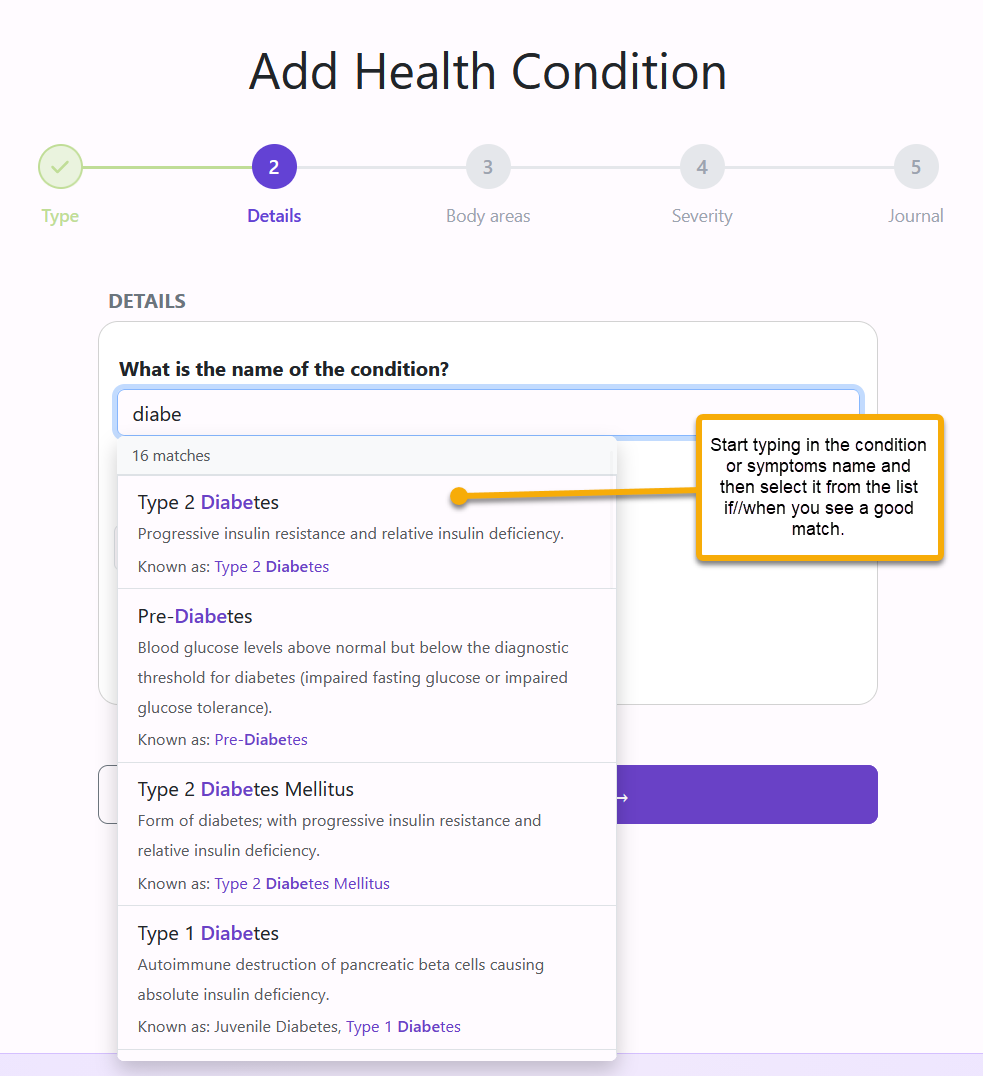
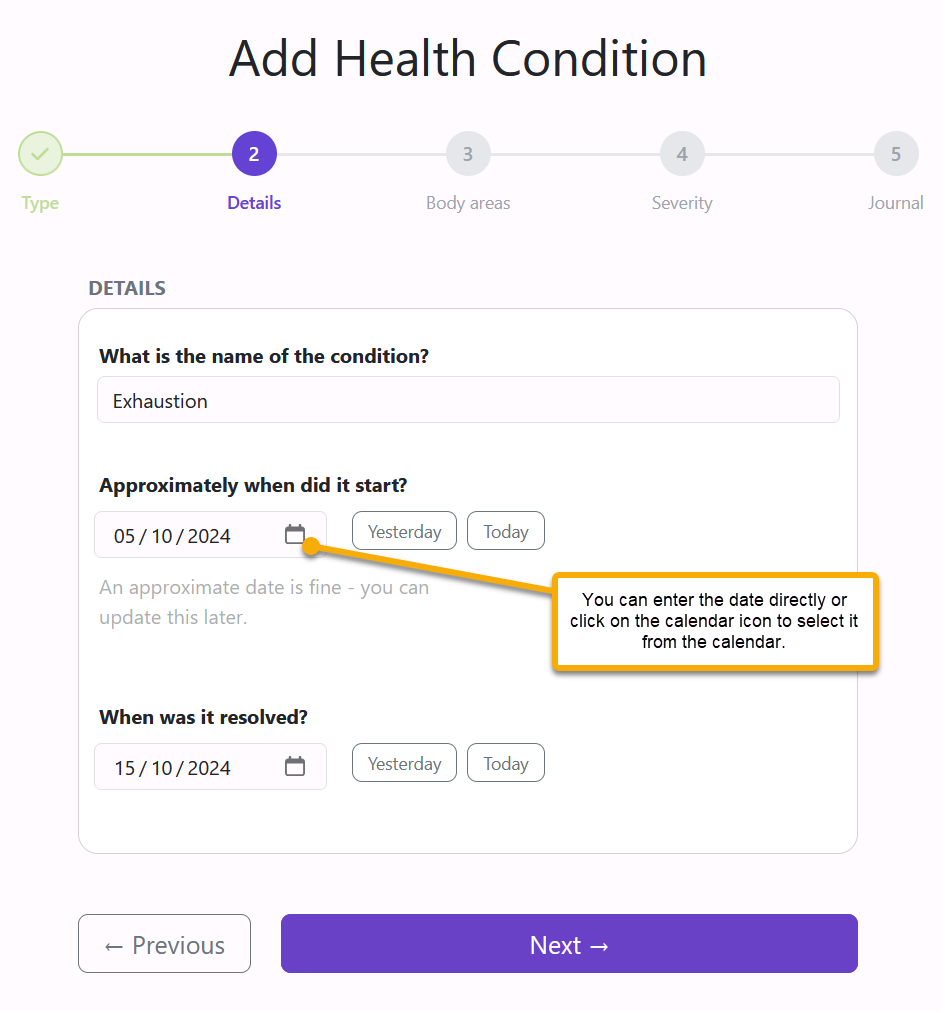
Step 2: enter the condition details
- Search for the condition name. Pick the closest match from the results when one exists.
- Use a plain name if needed. If the exact wording is not listed, continue with wording you will recognize later.
- Add the start date. The screen accepts an approximate start date. Resolved conditions also ask for an end date.
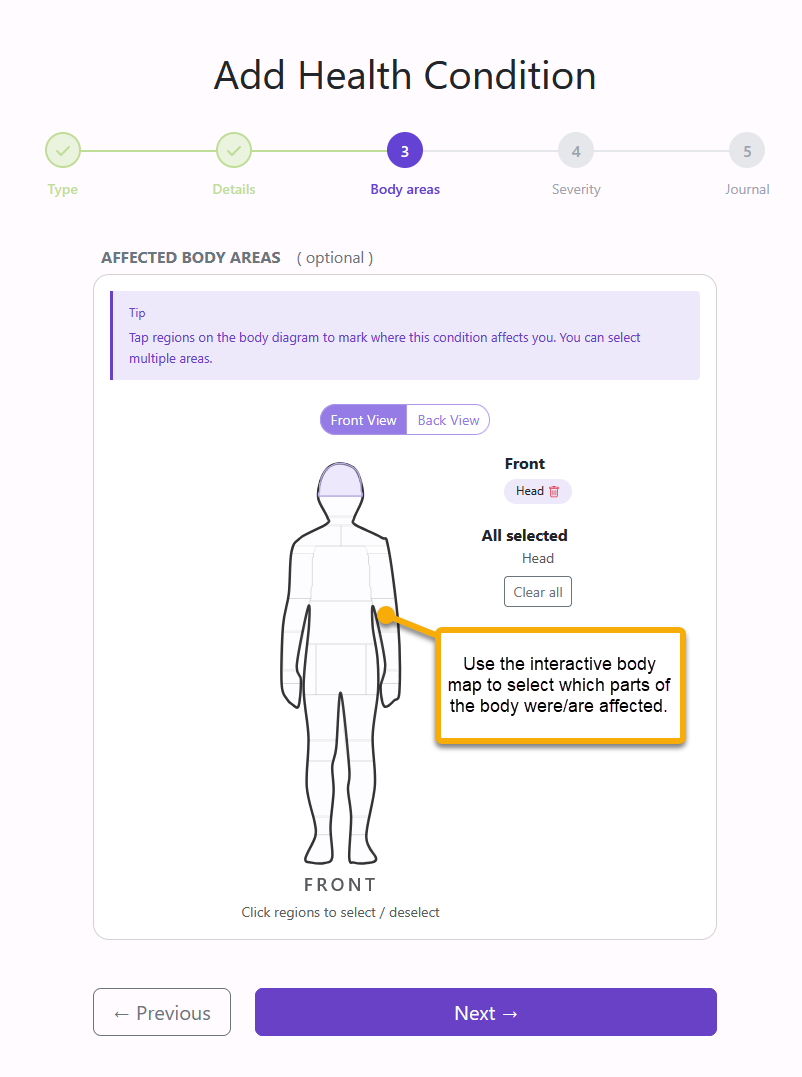
Step 3: mark affected body areas
- Use the body diagram if location matters. Tap the region affected by the condition.
- Select more than one area if needed. This is useful for pain, injury, skin issues, or symptoms that move.
- Leave it blank when it does not apply. This step is optional.
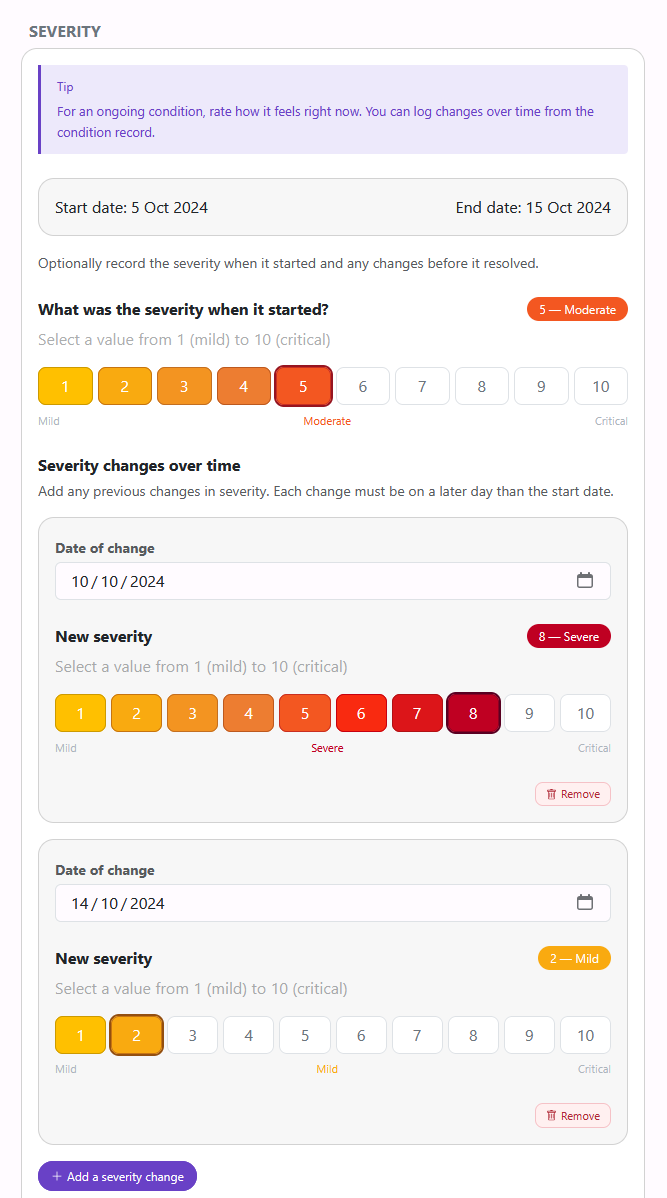
Step 4: record severity
- Use 1 for mild symptoms and 10 for critical severity.
- For an ongoing condition, add later severity changes when symptoms shift, especially around treatment starts, stops, or dose changes.
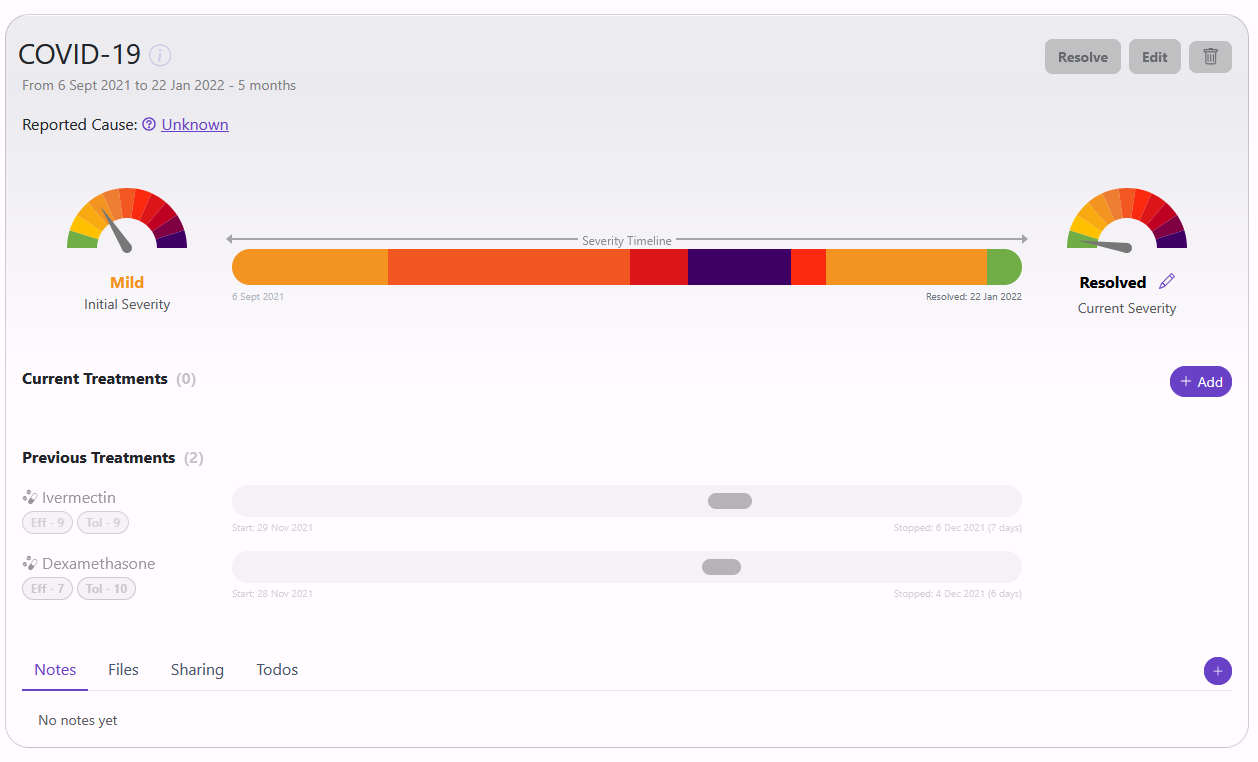
- Use the severity timeline to see whether symptoms improved, worsened, or stayed steady while treatments were being taken.
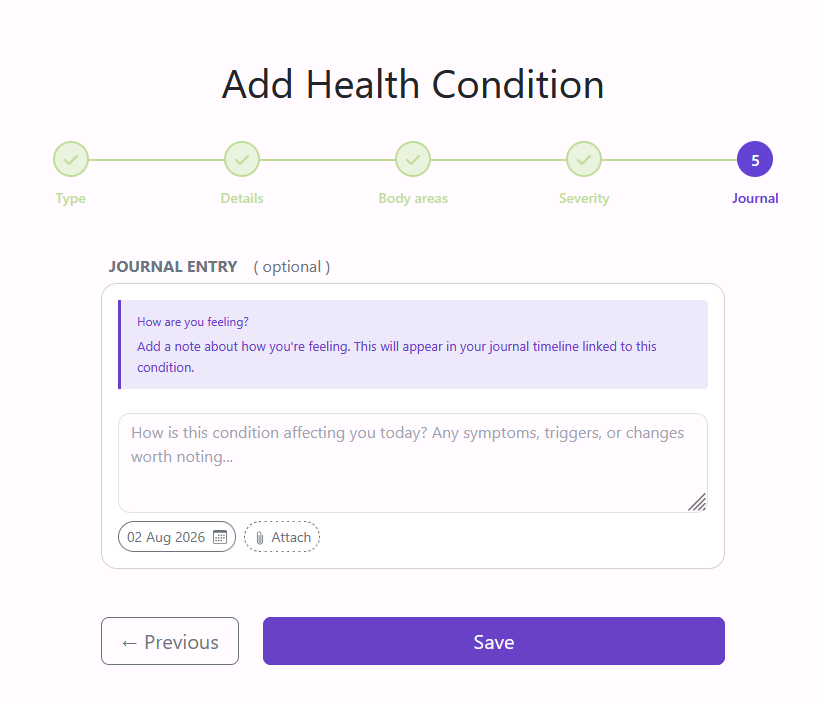
Step 5: add a linked journal note
- Add context in your own words. Describe symptoms, triggers, frustrations, successes, and how the condition affected daily life.
- Attach files if useful. Use Attach when there is a related image or document.
- Save only when ready. Save creates the condition record.
The note added here appears in the Journal timeline linked to this condition, so it is useful when the form fields do not tell the full story.
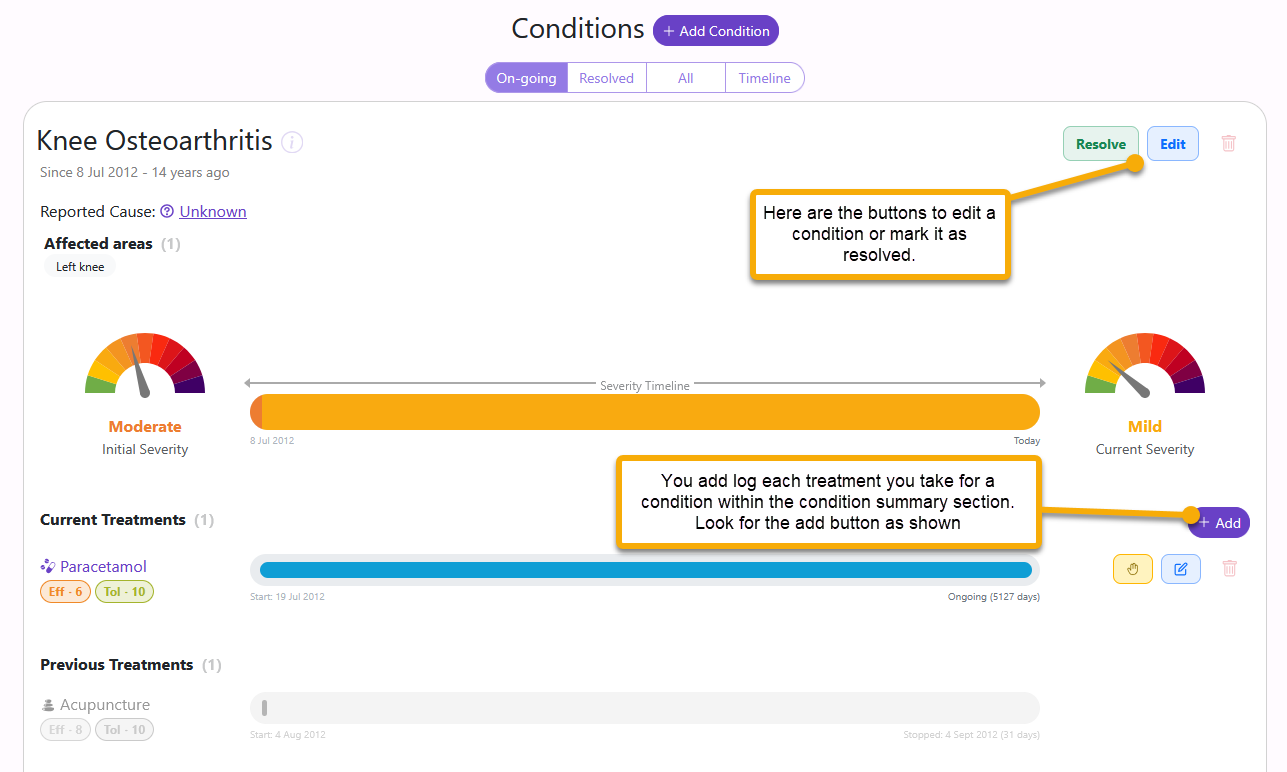
Add treatments from the condition
When something is being used to treat a condition, add it from that condition record. This keeps the treatment in context, so timeline views can compare when a treatment started with how severity changed over time.
- If ibuprofen is being taken for neck pain, add it from the Neck pain condition.
- If a supplement is taken generally for wellbeing, add it under Meds & Supps.
- If physiotherapy is treating a condition, add or link it from that condition so the story shows the relationship.
- Linked treatments can show dates, effectiveness, tolerability, dosage where relevant, and whether they are still active or stopped.
Review and update conditions
- Use Ongoing for current health. This keeps active problems visible.
- Use Resolved for past problems. Resolved conditions stay in the story without cluttering the current view.
- Use the timeline and journal shortcuts. They help you see when conditions started, how severity changed, and what treatments were active at the same time.